
Saved Searches
Save your favorite search filters and re-run them with a single tap — no need to set everything up again.
What Is a Saved Search?
A Saved Search remembers a combination of filters you've applied on the Explore screen — such as a location and a camp category. Instead of picking those filters again each time, you can tap the saved search to instantly re-run it.
For example, you might save:
- Art Camps in Franklin, TN — for your creative kids
- Sports Camps in Nashville, TN — for your athlete
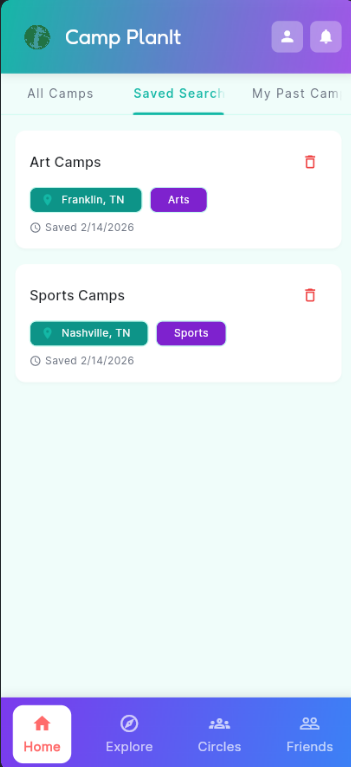
Your saved searches, ready to re-run anytime
Saving a Search
- Go to the Explore tab.
- Apply the filters you want — location, camp type, age range, etc.
- Tap the bookmark icon or the Save Search option that appears after filters are applied.
- Give your search a name (e.g., "Art Camps in Franklin") and tap Save.
Tip: Give each saved search a descriptive name so you can tell them apart at a glance.
Running a Saved Search
- Go to the Explore tab.
- Tap the Saved Searches tab at the top of the screen.
- Tap any saved search card to instantly run it. Results appear just as if you'd set the filters yourself.
Deleting a Saved Search
- Open the Saved Searches tab.
- Tap the red trash icon on the right side of the saved search you want to remove.
- Confirm the deletion. The search is removed immediately.
Note: Deleting a saved search does not affect any camps you've already added to your planning — it only removes the saved filter combination.