
Circles
Plan summer camps together. Circles are private groups where parents can share camps, compare options, and coordinate as a team.
Circles are free for every account — create or join as many as you like.
What Is a Circle?
A Circle is a private planning group you create and invite other parents to join. Think of it like a group chat — but built specifically for camp planning.
Common examples:
- Hockey Team Parents — Share hockey camps with your team families
- 4th Grade Moms — Coordinate with families from your child's class
- Soccer Parents — Plan summer soccer camps together
- Neighborhood Families — Share camps with neighbors for easy carpooling
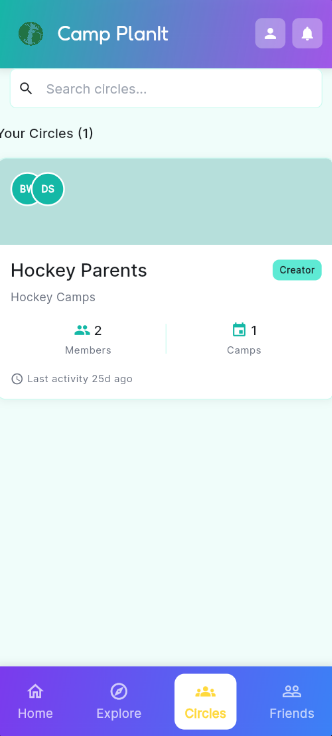
Your Circles — each group shows members, shared camps, and last activity
Creating a Circle
- Tap Circles in the bottom navigation bar.
- Tap the + button (or Create a Circle) in the top-right corner.
- Enter a name for your Circle — something your group will recognize, like "Soccer Parents."
- Add a description if you'd like (optional).
- Tap Create. Your Circle is ready to go.
You're the Creator. As the person who creates a Circle, you'll see a Creator badge on it. You can invite members and manage the group.
Inviting Parents to Your Circle
- Open the Circle you want to add people to.
- Tap Invite Members or the person+ icon.
- Search for parents by name or email address. You can also invite from your Friends list.
- Tap Send Invitation. They'll receive a notification in the app to accept or decline.
Tip: You can also tap Invite Friends from the Home screen Quick Actions to invite parents who aren't on Camp PlanIt yet.
Accepting a Circle Invitation
When another parent invites you to their Circle, you'll receive a notification. Here's how to respond:
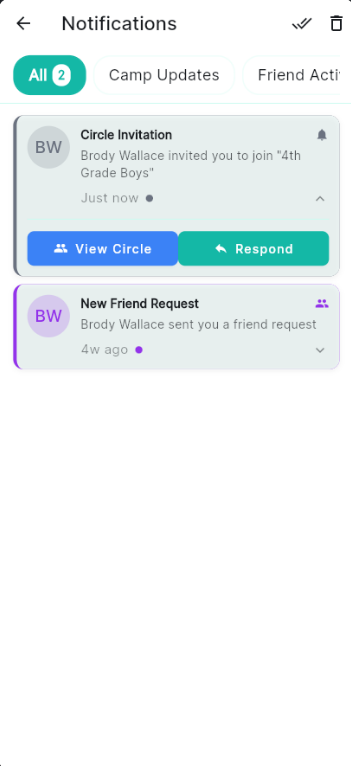
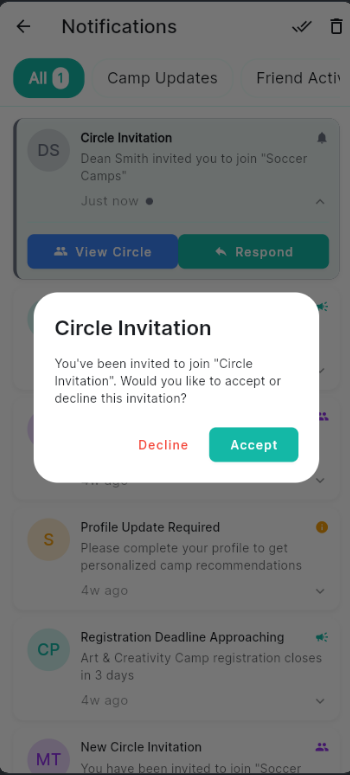
A Circle invitation in your Notifications, and the Accept/Decline dialog
- Tap Notifications (the bell icon) at the top of any screen.
- Find the Circle Invitation notification and tap Respond.
- A dialog appears asking if you'd like to join. Tap Accept to join, or Decline to pass.
- If you accept, the Circle immediately appears in your Circles list.
What You Can See in a Circle
Inside a Circle you can:
- See shared camps — All camps that members have shared with the group
- See member count — How many parents are in the group
- Track camp interest — Which members have each camp in their planning
- Share a camp — Open any camp detail page and tap Share, then select your Circle
Creator vs. Member
- Creator Creator — Created the Circle; can invite and remove members and delete the Circle.
- Member — Can view shared camps, share camps to the Circle, and leave the Circle at any time.
Leaving a Circle
- Open the Circle you want to leave.
- Tap the menu icon (three dots) in the top-right corner.
- Tap Leave Circle and confirm.
Note: If you created the Circle, you'll need to transfer ownership or delete the Circle before leaving.