
Camp Details & Planning
View everything about a camp and track exactly where each of your children stands — all in one place.
Opening a Camp Page
From the Explore screen, tap View Details on any camp card. You can also tap a camp from your Home screen calendar, your planning list, or a link shared by a friend.
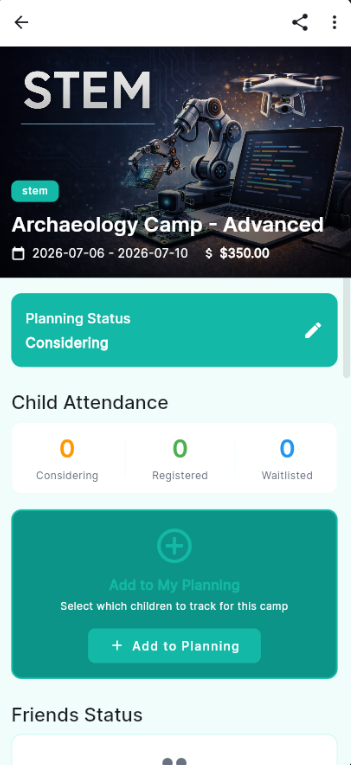
A camp detail page
Reading Camp Information
The top of the camp page shows the key facts:
- Camp photo & category — A photo and a category chip (e.g., stem, sports)
- Camp name — The full name and organizing group
- Dates — Start and end dates of the camp session
- Price — Cost per child for the session
Setting a Planning Status
The Planning Status card lets you tell Camp PlanIt where this camp stands in your decision-making. Tap the pencil icon on the Planning Status card to change it.
- Considering — You're interested but haven't decided yet.
- Registered — Your child is signed up and confirmed.
- Waitlisted — You've applied but are waiting for a spot.
Only your in-app friends can see your Planning Status — and you can only see theirs.
Camp PlanIt keeps status private by design. If you aren't connected as friends in the app, your camp plans stay invisible to each other. Add friends →
Tracking Child Attendance
The Child Attendance section shows how many of your children are at each status level for this camp:
- Considering — Children you've tagged as interested in this camp
- Registered — Children who are enrolled
- Waitlisted — Children on the waiting list
Adding a Child to This Camp
Adding camps to your planning list is free for every account — no limits on camps or kids.
- Scroll down to the Add to My Planning section and tap + Add to Planning.
- Select which child (or children) you want to track for this camp.
- Choose their current status: Considering, Registered, or Waitlisted.
- Tap Save. The camp now appears in your planning list and on your Home calendar.
Seeing What Friends Are Doing
The Friends Status section near the bottom of the camp page shows which of your Camp PlanIt friends have also added this camp to their planning. This makes it easy to see if families you know are considering the same camp — great for coordinating carpools or Circles.
Friends Status is only shared between connected friends.
You will only see camp statuses for parents you are already friends with in the app — and they will only see yours. Parents you are not connected with will not appear here, and they cannot see your status either. This is true even if you're both attending the same camp.
To start seeing friends' statuses (and share yours with them), add them as a friend first →
Sharing a Camp
Found a camp you want to pass along to another parent? Tap the share icon (↑) in the top-right corner of the camp page.
- Tap the share icon at the top of the camp detail page.
- Choose how you'd like to share — via text, email, or directly to a Circle.
- The recipient receives a link that opens the camp directly in Camp PlanIt (or in a browser if they don't have the app yet).
Reporting a Camp
If you notice a camp listing with incorrect information, inappropriate content, or other issues, you can report it directly from the camp detail page. Tap the three-dot menu (⋮) in the top-right corner and select Report Camp.
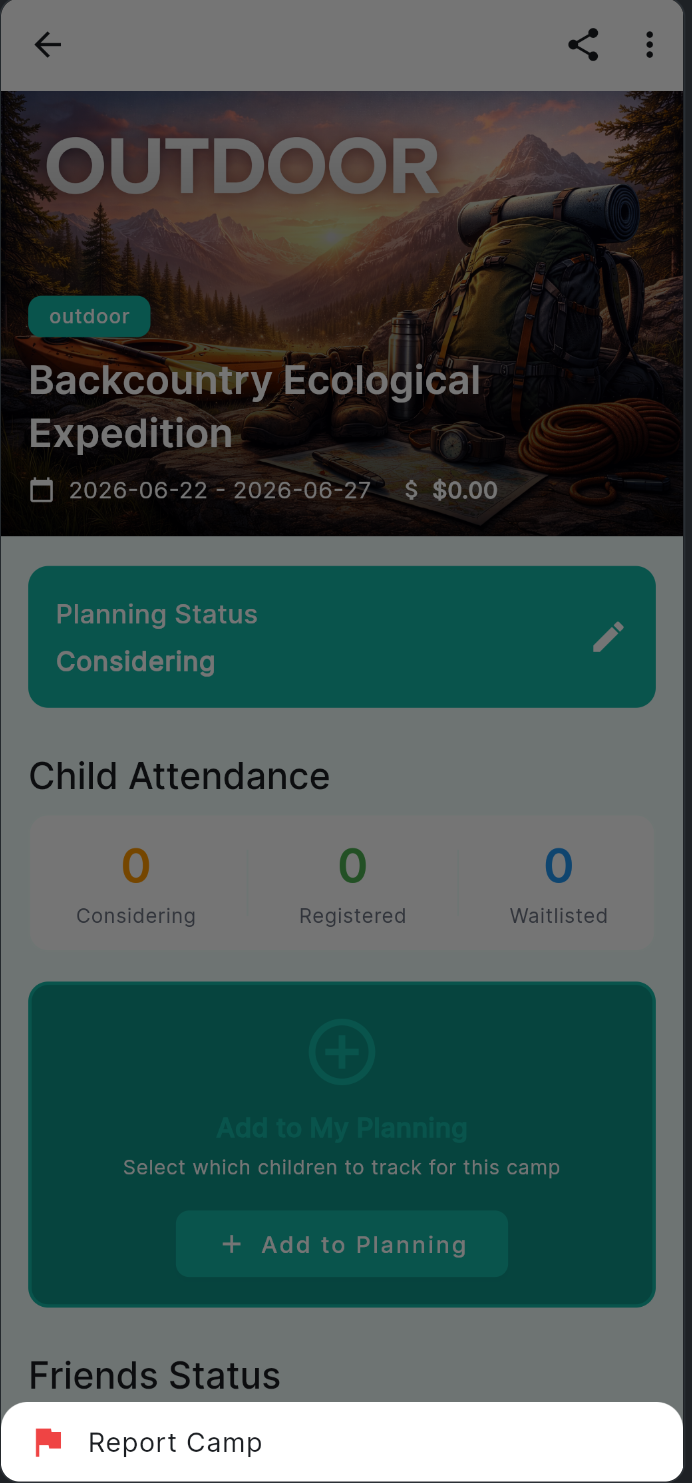
Tap the ⋮ menu, then Report Camp
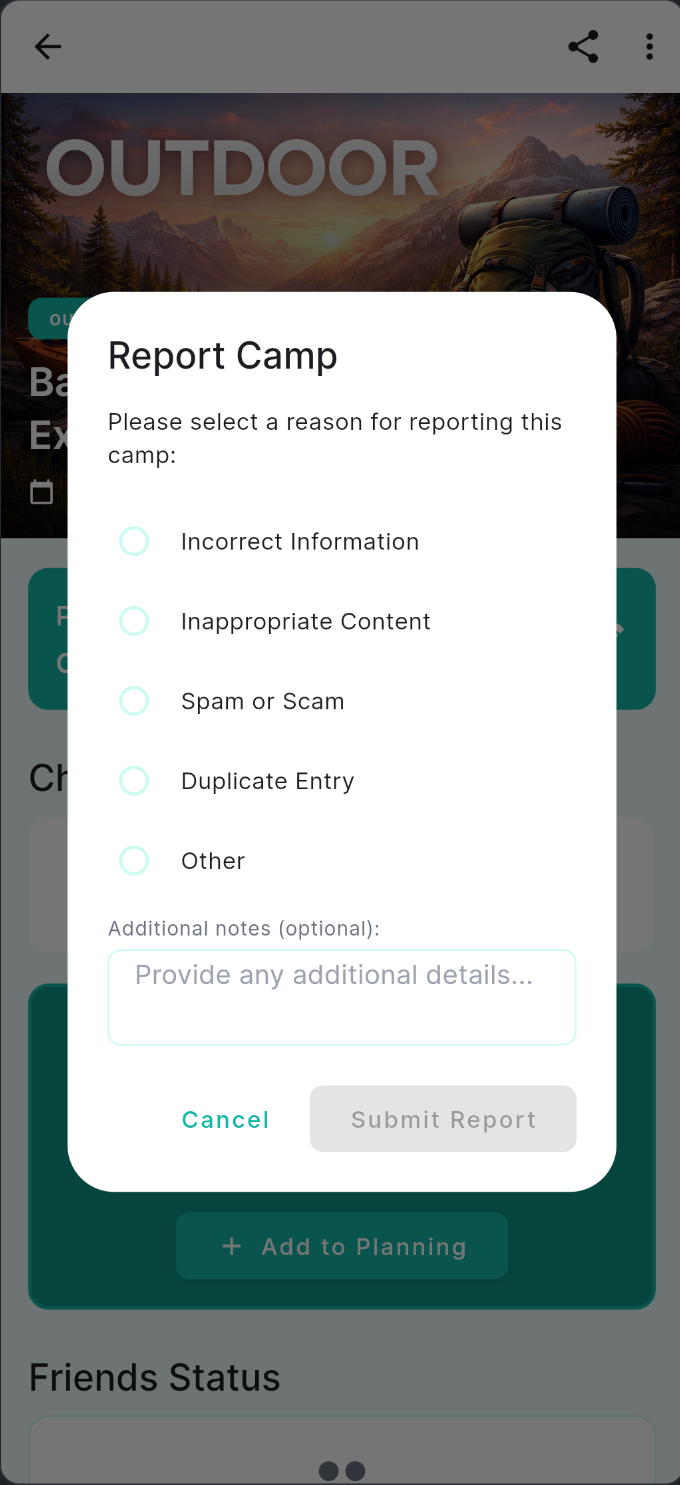
Select a reason and submit
- Tap the ⋮ menu in the top-right corner of the camp detail page.
- Tap Report Camp.
- Select the reason that best fits: Incorrect Information, Inappropriate Content, Spam or Scam, Duplicate Entry, or Other.
- Optionally add any additional notes to help the team, then tap Submit Report.